If you need any help with using the analysis tools or just with generating needed results, check this site.
Analysing project release using Jira, CKJM and JaCoCo.
- Set up your DePress and download workflow Here. Here you can find example input files used in this tutorial. You can use either them or your own log files. Import Knime workflow as shown in above tutorial.
- Your workflow should look similar to this:
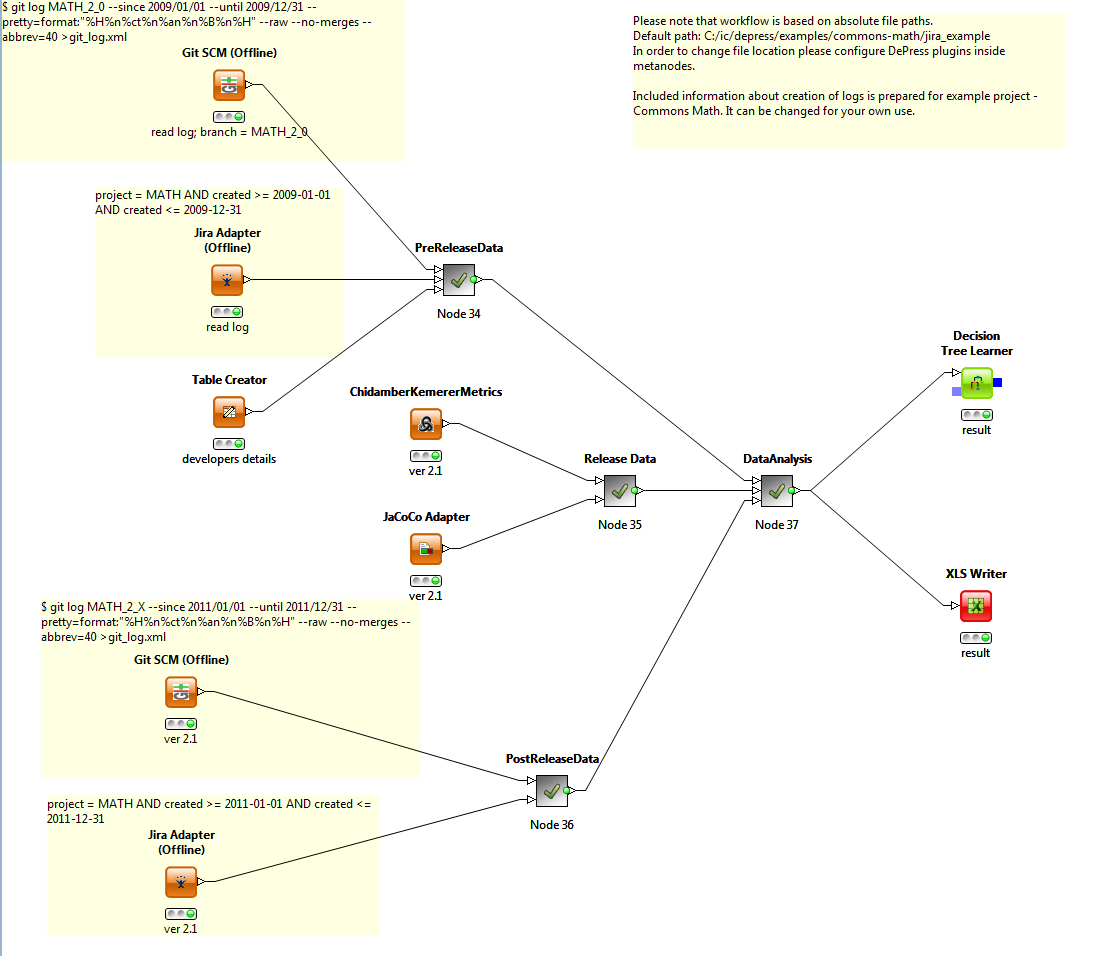
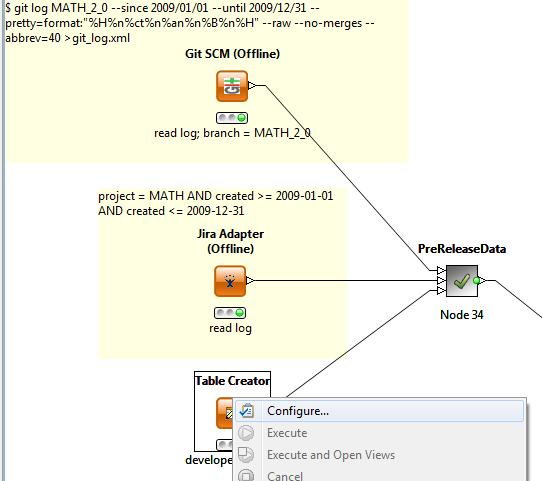
- There are four parts of data analysis. First is pre release version. Select your Jira and Git log files and
configure appropriate nodes seen in this part by clicking on them with the right button. Add also list of developers.
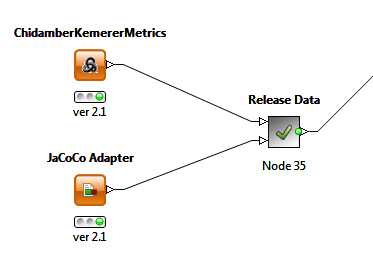
- Now focus on release part. There you use your JaCoCo and CKJM log files. Configure these two orange nodes the same way as said above.
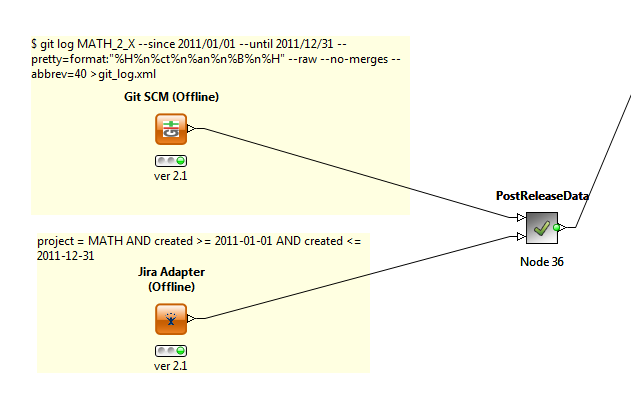
- In this part you look at post release version of your project. Use Git and Jira log files.
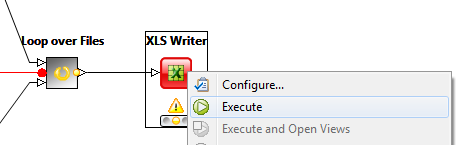
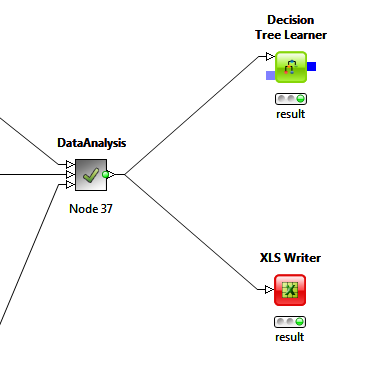
- Now you can get information about the result of data analysis. You can get a xls file or a diagram. Click with right button of the mouse on either XLS Writer node or Data Tree Learner and choose execute. When you get a green circle under your node, your result is ready. You can check it clicking with right button on node and choosing the last option. Instruction of XLS Writer configuration is shown in above tutorial.
Release notes for Git/SVN files with Jira
- Set up your DePress and download workflow for either Git or SVN(click on name). If it's needed, check Example Git files used in this tutorial.
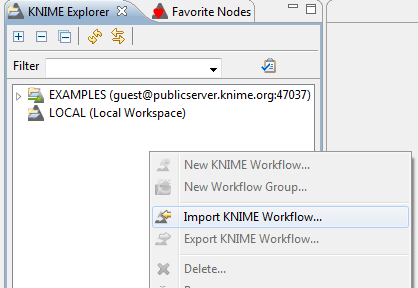
- Import (previously downloaded) KNIME workflow as an archive file:
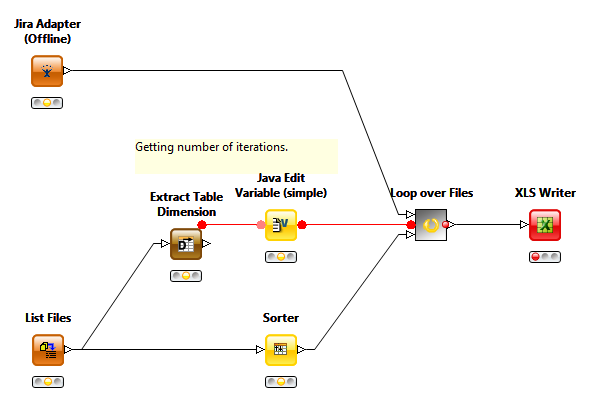
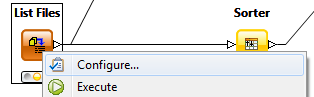
- Select your Git/SVN log files(if you don't know how to generate them, click on the blue button above). To do this select configure on List Files node and choose your directory where both files are placed.
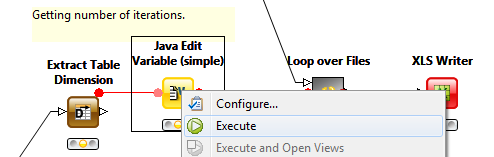
- Execute Java Edit Variable (simple) node.
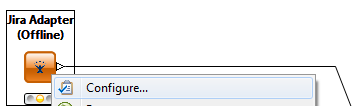
- Select your Jira log file.
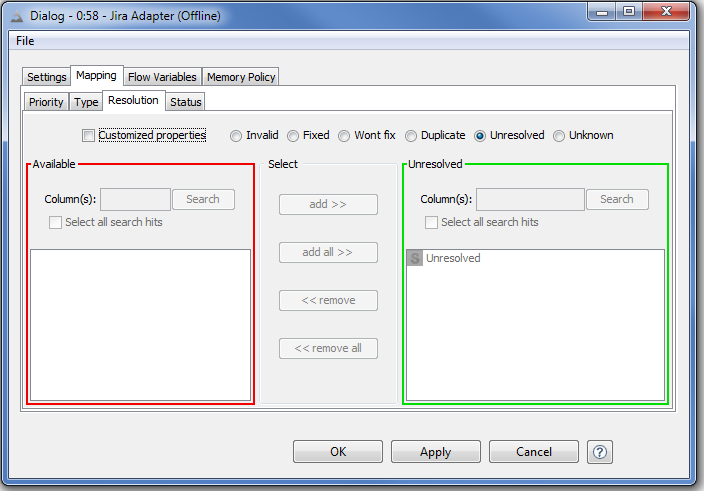
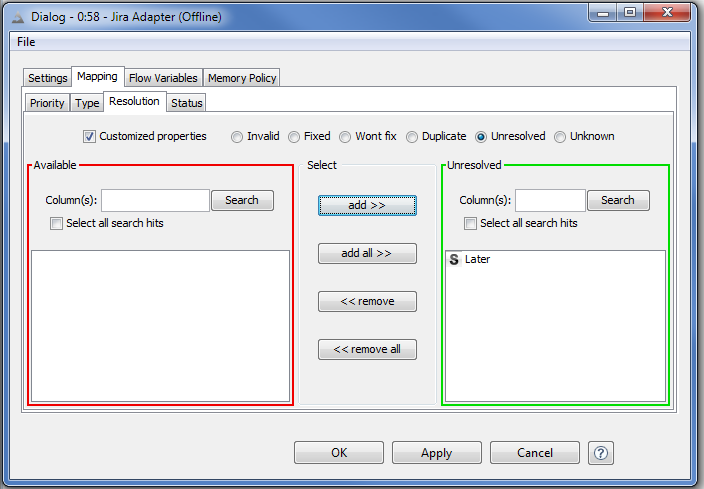
- Optionally you can configure Jira mapping of nonstandard values.
Following this example: Go to Mapping tab, then Resolution and enable "Customized properties".
Select "Unresolved" radio button.
- Configure XLS Writer - set output file name in appriopriate box. Click OK.
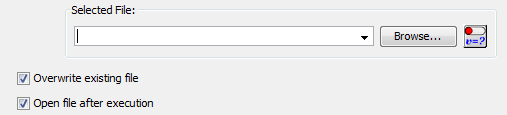
- By now everything should be configured. Execute XLS Writer node. Clicking on it with the right mouse button and choosing the last option, you can see the result table.
It will also be dispayed as a XLS file.